


 Search
 Saved Articles

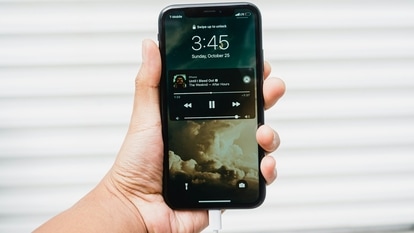
How to activate iPhone dark mode in 2 simple ways; check these settings
To enjoy a more stylish, relaxing, and efficient smartphone experience, know how to enable iPhone dark mode effortlessly.






 View all Images
Are your late-night iPhone sessions hurting your eyes? Say goodbye to that blinding screen! Learn how to turn on iPhone Dark Mode with ease for a sleek look, reduced eye strain, and even better battery life. iOS offers a seamless way to apply a dark theme across your device's interface and apps with just a single tap. In fact, you don't have to enable Dark Mode on your iPhone for each app individually. There are multiple methods at your disposal to turn the dark mode on or off on your iPhone. Let's explore these methods.
How to Activate iPhone Dark Mode
Method 1: Using Control Center
1. Swipe down from the top-right corner of your home screen.
2. Press and hold the brightness bar.
3. Tap "Dark Mode."
If you find the screen is not dark enough to suit your preferences, you can fine-tune it by adjusting the brightness slider. This simple process will transform the user interface and introduce a visually appealing dark theme to all compatible apps.
We are now on WhatsApp. Click to join.
Method 2: Through the Settings Menu
1. Access the Settings app.
2. Navigate to "Display & Brightness."
3. Enable "Dark Mode."
Your device's appearance will now be transformed. If you ever wish to revert to the default Light Mode, you can easily do so by following the same steps.
How to Automate Dark Mode on Your iPhone or iPad
If you prefer not to manually switch between light and dark themes, there's a convenient solution.
1. Go to the Settings app.
2. Access "Display & Brightness."
3. Toggle on "Automatic mode" and tap "Options."
4. Select "Custom Schedule" and define the time frame for Light and Dark modes.
By setting a custom schedule, you can have Dark Mode activate automatically during specific hours, eliminating the need for manual adjustments.
Benefits of Embracing Dark Mode on iPhone and iPad
Now that you know how to enable and automate Dark Mode on your devices, let's delve into its advantages:
1. Reduced Eye Strain and Improved Sleep Quality
Dark Mode significantly reduces eye strain and visual fatigue by minimizing the blue light emitted from your device. This is especially beneficial when using your devices in darker environments or at night, as it promotes relaxation and enhances the quality of your sleep.
2. Aesthetic Appeal
Dark Mode lends a sleek and stylish appearance to apps and menus, making them visually appealing and contributing to an overall improved user experience.
3. Extended Battery Life
Dark Mode, particularly on OLED screens, conserves battery life by illuminating fewer pixels. This results in extended usage between charges, ensuring your device stays powered for longer periods.
4. Enhanced Accessibility
By reducing screen glare and increasing contrast ratios, Dark Mode improves accessibility for individuals with visual impairments or sensitivity to bright lights, making your device more user-friendly for a broader audience.
Catch all the Latest Tech News, Mobile News, Laptop News, Gaming news, Wearables News , How To News, also keep up with us on Whatsapp channel,Twitter, Facebook, Google News, and Instagram. For our latest videos, subscribe to our YouTube channel.






 Follow our Page
 Follow our Page
 Follow our Channel